Creating a Design System
Creating a Design System
Creating a Design System
From Semantic colors to Figma variables and Code Connect, here is how I took it to the next level.
Opportunity
When Brightly transitioned from Adobe XD to Figma shortly after I started, I led the migration and ran training sessions to get the team up to speed on using Figma. The transition also surfaced a larger opportunity: what existed as a design system was closer to a style guide, and moving to Figma provided the opportunity to truly move this to a more sophisticated design system.
I came to the work with relevant experience because I had previously been part of a team building a design system for a health insurance company. I also had the opportunity to collaborate directly with two design system leads from Siemens, a global organization with over 300,000 employees and products spanning dozens of markets. That partnership began when I was tasked with integrating one of our products into their design system, which I used as a model for building our own."
Process
Semantic Colors
The foundational styles had been in place for years, so this work reflects my system-building skills rather than my personal UI preferences.
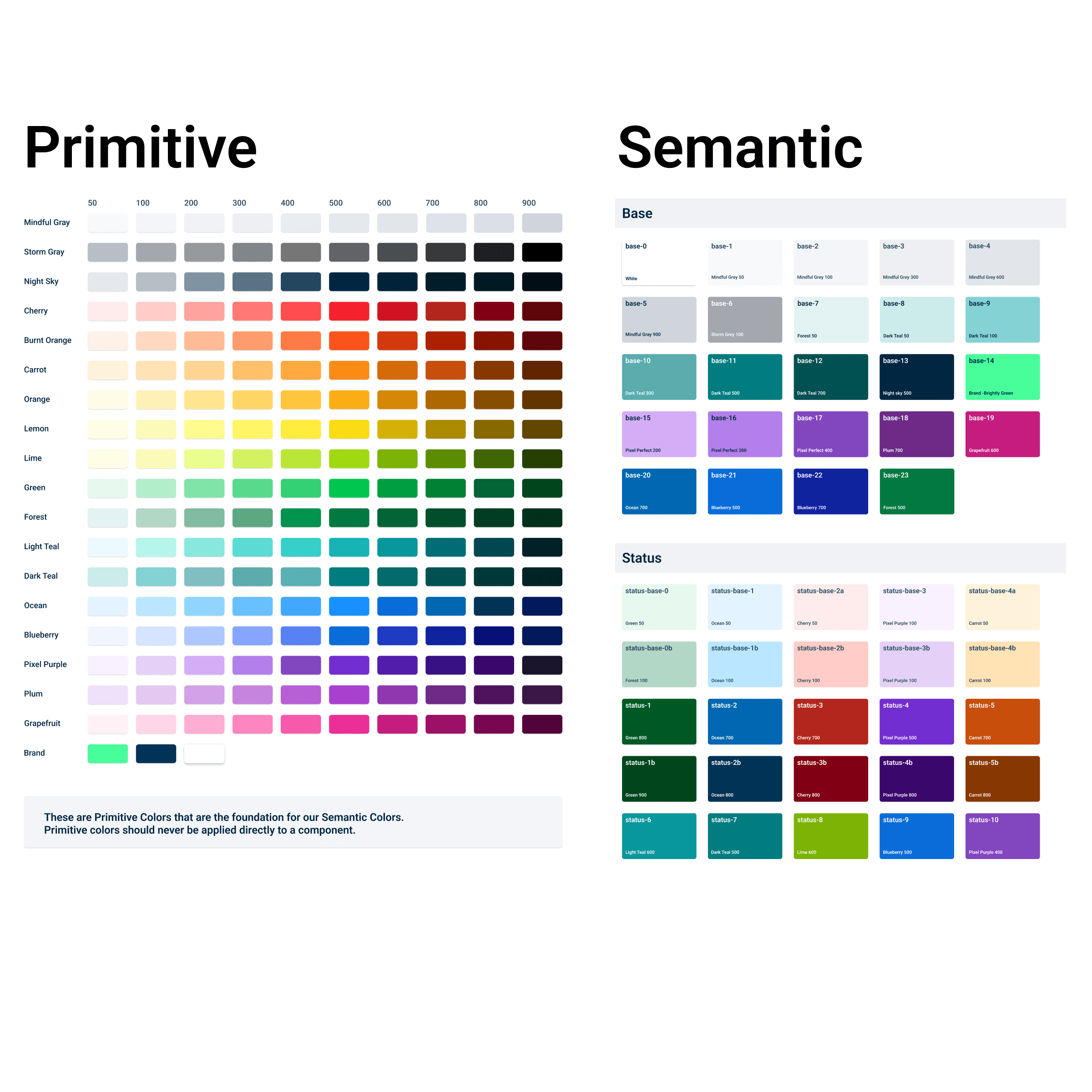
My first step was creating Primitive and Semantic colors. Primitive colors are a refined color palette not directly applied to components or designs. When we decide to use a Primitive color in design, it becomes a Semantic color with functional names like base-1 or border-2. This system provides:
Clarity - Designers easily know where each color applies.
Flexibility - A Primitive color, like Ocean 300, can serve multiple functions (e.g., text-3, border-4). Adjusting border-4 (e.g., darkening it to Ocean 400) won’t affect text-3 or the original Ocean color.
The foundational styles had been in place for years, so this work reflects my system-building skills rather than my personal UI preferences.
My first step was creating Primitive and Semantic colors. Primitive colors are a refined color palette not directly applied to components or designs. When we decide to use a Primitive color in design, it becomes a Semantic color with functional names like base-1 or border-2. This system provides:
Clarity - Designers easily know where each color applies.
Flexibility - A Primitive color, like Ocean 300, can serve multiple functions (e.g., text-3, border-4). Adjusting border-4 (e.g., darkening it to Ocean 400) won’t affect text-3 or the original Ocean color.
Variables
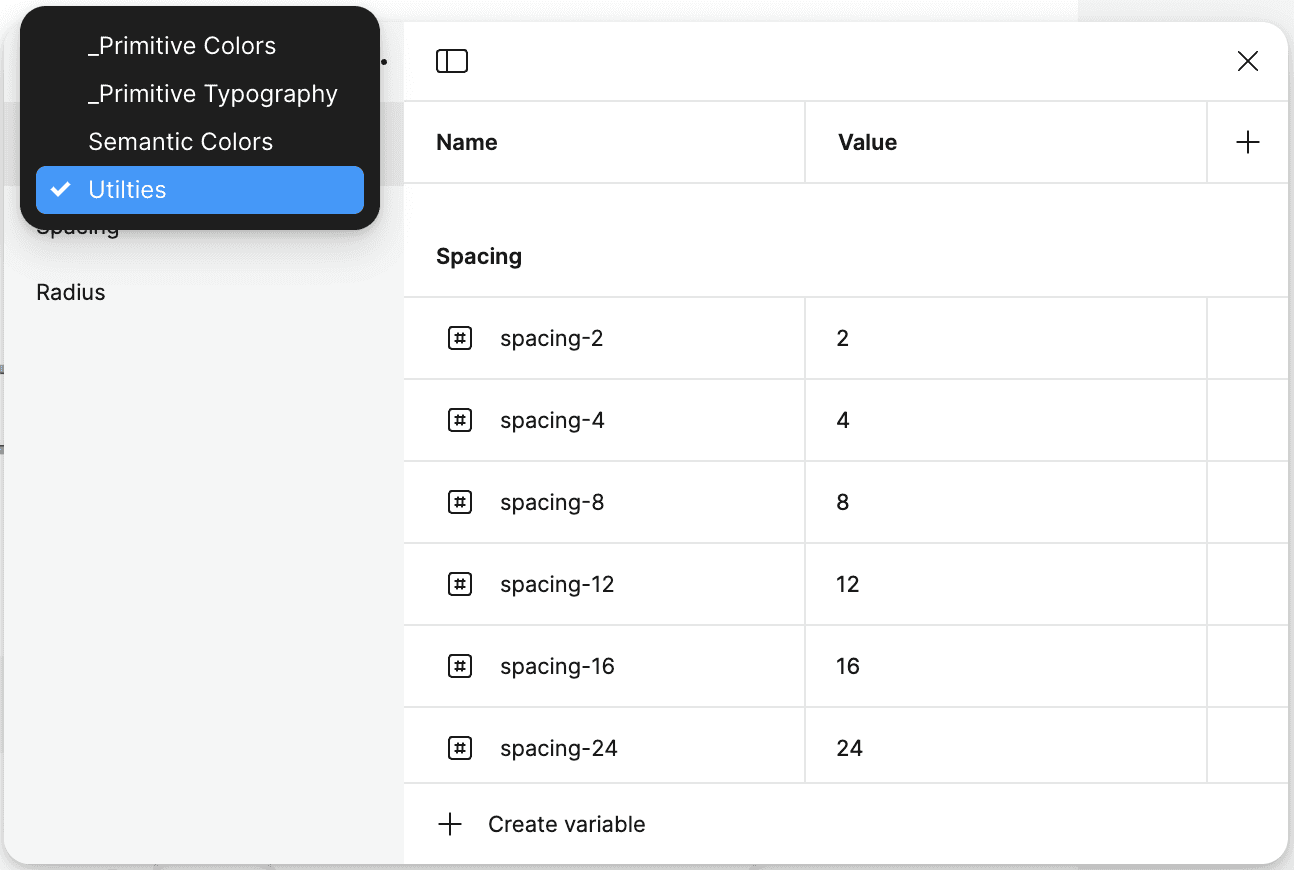
We converted these colors into variables, excluding Primitive colors from the published design system. Using variables instead of fixed styles allows us to modify Semantic colors without impacting Primitive colors, as previously mentioned. This approach also enables flexibility with modes, such as light and dark themes, allowing designers or developers to toggle an entire design with a single switch.
We converted these colors into variables, excluding Primitive colors from the published design system. Using variables instead of fixed styles allows us to modify Semantic colors without impacting Primitive colors, as previously mentioned. This approach also enables flexibility with modes, such as light and dark themes, allowing designers or developers to toggle an entire design with a single switch.

In addition, we introduced variables for spacing and radius, giving designers quick access to predefined options for efficiency and consistency. We also created styles for shadows/elevations, gradients, and variables for line spacing and font sizes.
In addition, we introduced variables for spacing and radius, giving designers quick access to predefined options for efficiency and consistency. We also created styles for shadows/elevations, gradients, and variables for line spacing and font sizes.
In addition, we introduced variables for spacing and radius, giving designers quick access to predefined options for efficiency and consistency. We also created styles for shadows/elevations, gradients, and variables for line spacing and font sizes.
Slots and Other Elements
We documented numerous standard design system elements, such as a grid system, standard layout examples, skeleton loaders, progress indicators, overlays, and more.
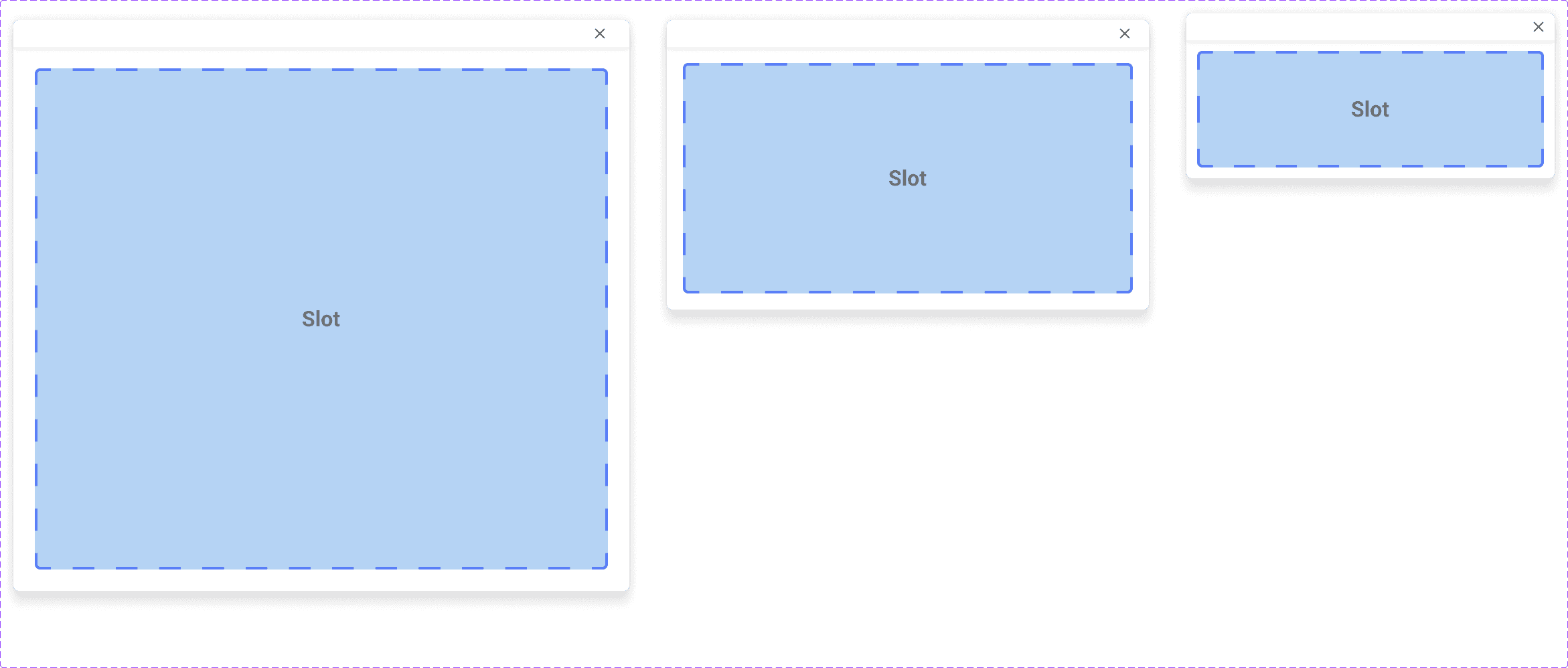
However, a design system can’t standardize every layout or scenario. To address this, we introduced "Slots." For example, with pop-up modals, we provided recommended sizing guidelines. Designers can create content tailored to user needs by designing within the modal size and swapping it into the slot as needed. This approach promotes both efficiency and consistency. We applied slots to elements like side sheets, cards, and widgets.
We documented numerous standard design system elements, such as a grid system, standard layout examples, skeleton loaders, progress indicators, overlays, and more.
However, a design system can’t standardize every layout or scenario. To address this, we introduced "Slots." For example, with pop-up modals, we provided recommended sizing guidelines. Designers can create content tailored to user needs by designing within the modal size and swapping it into the slot as needed. This approach promotes both efficiency and consistency. We applied slots to elements like side sheets, cards, and widgets.
Bricks: Component Building Blocks
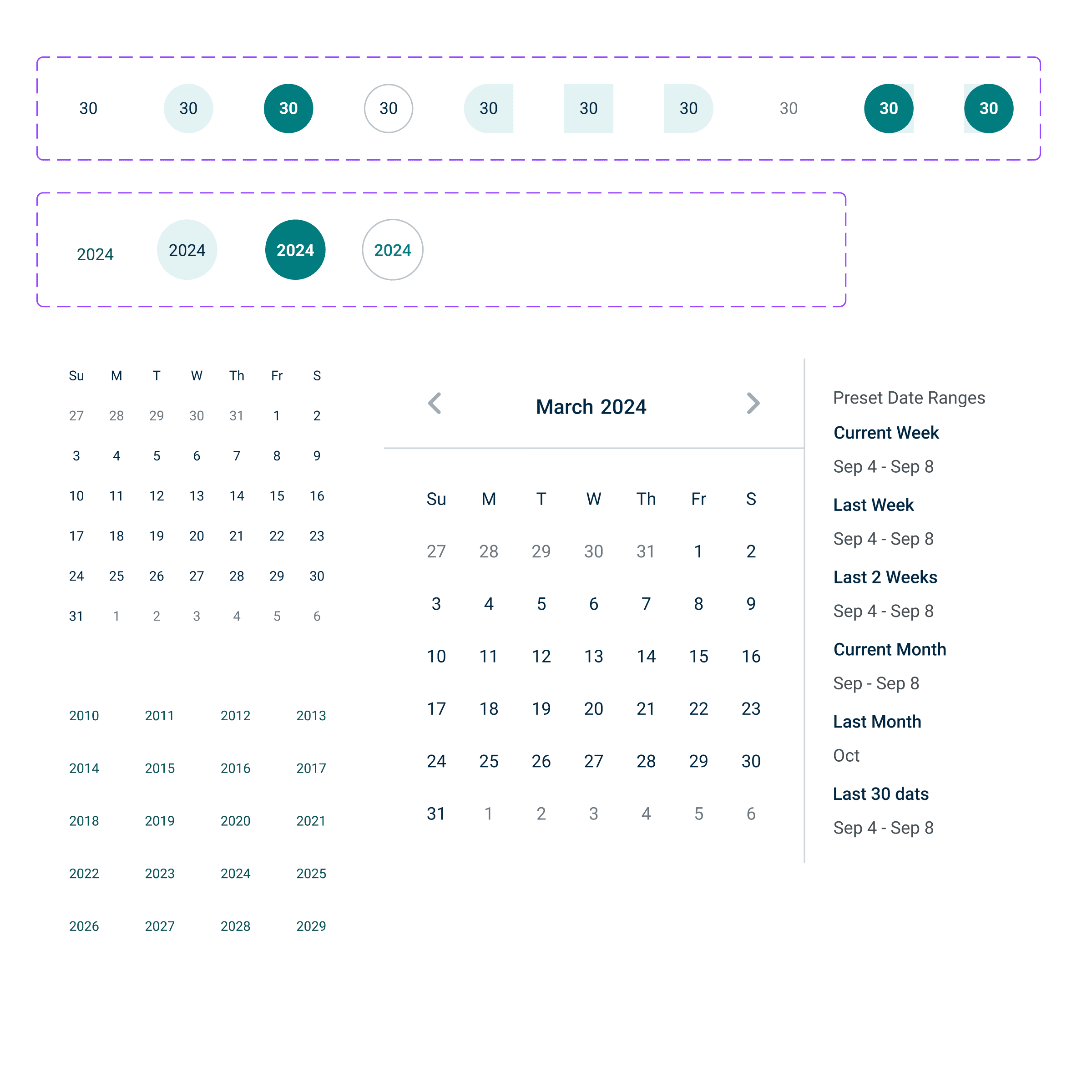
To build complex, highly customizable components, we start with foundational "bricks," similar to atomic design. For example, creating a dropdown component begins with designing list items, including hover states and options to show/hide elements. We then use these items to build a responsive dropdown list and, eventually, a dropdown menu with a button option, incorporating various states for dropdown fields and buttons.
These building blocks allow a single component to serve multiple use cases, reducing the need for a long list of components in the design system.
To build complex, highly customizable components, we start with foundational "bricks," similar to atomic design. For example, creating a dropdown component begins with designing list items, including hover states and options to show/hide elements. We then use these items to build a responsive dropdown list and, eventually, a dropdown menu with a button option, incorporating various states for dropdown fields and buttons.
These building blocks allow a single component to serve multiple use cases, reducing the need for a long list of components in the design system.
Complex Components
Assembling the bricks creates a component with its own variants and customization options, while still allowing adjustments to the nested brick components. For example, in dropdown fields, designers can show or hide a tooltip icon or a required icon in the Label brick simply by toggling a switch. This enables designers to go down the list in right column and customize dropdowns precisely as needed while staying within the design system.
We also introduced text and Boolean attributes to make edits quick and efficient.
Assembling the bricks creates a component with its own variants and customization options, while still allowing adjustments to the nested brick components. For example, in dropdown fields, designers can show or hide a tooltip icon or a required icon in the Label brick simply by toggling a switch. This enables designers to go down the list in right column and customize dropdowns precisely as needed while staying within the design system.
We also introduced text and Boolean attributes to make edits quick and efficient.

Accessibility
Accessibility is essential in our design system. While some accessibility features are built-in, they can still be overlooked. For instance, a dropdown field might be missing a label when it should have one, or at least the correct ARIA attributes.
To address this, we included accessibility notes in the design system for designers and developers, ensuring consistent adherence to accessibility standards.
Accessibility is essential in our design system. While some accessibility features are built-in, they can still be overlooked. For instance, a dropdown field might be missing a label when it should have one, or at least the correct ARIA attributes.
To address this, we included accessibility notes in the design system for designers and developers, ensuring consistent adherence to accessibility standards.

Working with Dev
To create an outstanding design system, a strong partnership with development is essential. A design system in Figma is only valuable if it reaches Storybook and is implemented in the software. I initiated this collaboration by meeting with developers to introduce them to Figma’s Dev Mode.
We then engaged the front-end guild, set up regular meetings, and began building components with precision. Additionally, we utilized features like Code Connect to ensure our Figma design system and codebase stayed fully aligned.
To create an outstanding design system, a strong partnership with development is essential. A design system in Figma is only valuable if it reaches Storybook and is implemented in the software. I initiated this collaboration by meeting with developers to introduce them to Figma’s Dev Mode.
We then engaged the front-end guild, set up regular meetings, and began building components with precision. Additionally, we utilized features like Code Connect to ensure our Figma design system and codebase stayed fully aligned.